
Epson BrightLink 685WI
4.3Editor score
Two simultaneous interactive pens
WXGA classroom resolution
Multi-speaker projection support
Built-in moderator function
Interactive projectors combine a classroom display with touch-enabled collaboration, allowing teachers to annotate lessons, present documents, and engage students directly at the board. A useful model balances brightness, resolution, interactivity, connectivity, and installation flexibility rather than focusing on display size alone.
The products in this guide were compared using their supplied specifications, including projection technology, brightness, resolution, interactive capabilities, wireless support, placement options, and classroom-oriented features. The list covers native interactive projectors, conventional classroom projectors, and add-on whiteboard systems that can make compatible installations interactive.
Each review highlights the product most likely to fit a particular teaching environment, from portable presentation setups to permanently installed systems. Ratings and technical details reflect the available product information, while configurations and prices can change, so readers should confirm current specifications and compatibility before purchasing.
4.3Editor score

4.2Editor score

5.0Editor score
As an Amazon Associate we earn from qualifying purchases.
This side-by-side comparison covers native interactive classroom projectors, high-brightness presentation models, portable projectors, and whiteboard-based interactive upgrades. The key differences are native resolution, light output, interactivity, throw type, connectivity, and installation flexibility.


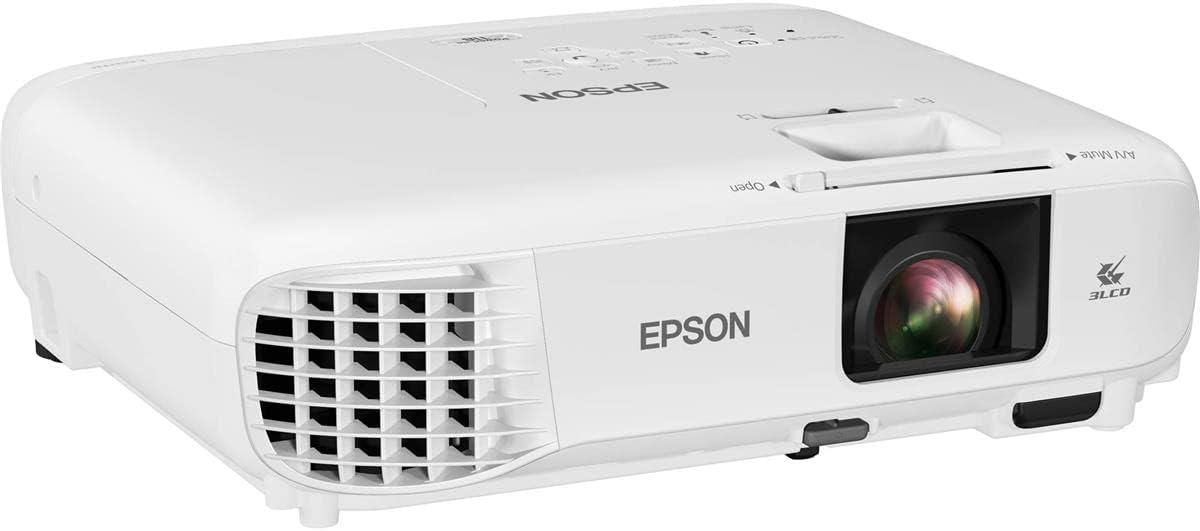


The Epson PowerLite X49 is a 3LCD classroom projector built around flexible presentation options and wireless connectivity. Its 4.6 rating reflects a favorable user history, while 3LCD color technology and a 12,000-hour rated lamp life make it a practical option for schools that need an installed or frequently used display.
We may earn a commission when you buy through this link, at no additional cost to you.
Wireless connectivity lets teachers place laptop, tablet, and mobile content on the screen without relying on a wired connection for every lesson. The moderator function can connect as many as 50 users simultaneously, creating a practical path for polls, quizzes, shared annotation, and collaborative activities. HDMI connectivity remains available for direct display from classroom computers.
The main limitation is that the supplied specifications do not list native touch or pen interaction. This makes the X49 a strong conventional classroom display but not a complete interactive solution by itself. Its XGA resolution is also less detailed than the Full HD options in this guide, so it is best suited to text, diagrams, and standard instructional media rather than fine-grained video.
This projector fits schools that prioritize dependable connectivity, large-room sharing, and a durable classroom-oriented design. Teachers who want collaborative writing should pair it with a compatible interactive whiteboard system. For schools seeking simple wireless presentation with a well-regarded rating, the X49 is an especially versatile choice.
Wireless connectivity removes many of the delays associated with hunting for adapters or arranging shared cables. The 50-user moderator function is particularly valuable when students need to submit ideas or teachers want to manage multiple connected devices during a lesson.
Epson's 3LCD technology is designed to produce vibrant images, while the stated 12,000-hour lamp life supports long-term use. Its flexible construction also allows placement on a desk, stand, or permanent installation depending on the room.
We may earn a commission when you buy through this link, at no additional cost to you.
The Epson BrightLink 595Wi is the most straightforward native interactive projector in this group. It combines 3,300 ANSI lumens, WXGA resolution, a 16:10 aspect ratio, and an ultra short throw design. Its 4.2 rating indicates generally favorable reception, and the bundled remote, HDMI cable, and power cable simplify initial setup.
We may earn a commission when you buy through this link, at no additional cost to you.
Ultra short throw placement is the standout feature for classrooms with limited space. The projector can sit close to the display surface, reducing the need for a deep installation area and helping keep walkways open. At 3,300 ANSI lumens, it also provides enough light output for clearly visible text, diagrams, and multimedia in rooms with controlled ambient lighting.
The resolution of 1280×800 is the key trade-off. It offers a useful widescreen canvas for annotation and presentations, but it does not provide the pixel detail of the ViewSonic LS740HD's native 1080p. Its 10,000:1 contrast ratio supports deeper-looking images, yet buyers with heavy video requirements should consider whether native resolution is more important than the integrated interactive functionality.
This is the best fit for schools that want direct pen-and-touch collaboration in a compact classroom setup without adding a separate whiteboard system. It is also a logical option for meeting rooms and training spaces where the same display must support presentations and live annotation. For that role, the 595Wi offers a more complete package than a standard projector paired with a retrofit board.
The ultra short throw configuration is especially useful where ceiling depth, cabinet space, or student movement is limited. Keeping the equipment close to the projection surface also makes a permanent classroom installation look tidier and more deliberate.
Unlike conventional projectors in this guide, the 595Wi is identified as an interactive model. Its included remote, HDMI cable, and power cable provide the basic connections needed for setup, while interactive teaching remains the central feature.
We may earn a commission when you buy through this link, at no additional cost to you.
The ViewSonic LS740HD is built for sharp, high-brightness presentation rather than native touch interaction. It combines 5,500 ANSI lumens, native 1920×1080 resolution, and a laser light source. Its 4.3 rating supports its reputation as a capable professional display, while the image quality is particularly appropriate for detailed diagrams, photographs, and video.
We may earn a commission when you buy through this link, at no additional cost to you.
Brightness is the defining advantage. The projector is designed to retain visibility in bright classrooms and meeting halls, making it well suited to rooms that cannot be fully darkened. Native Full HD resolution improves the readability of small text and intricate diagrams, while a 100-inch image can be produced from 8.2 feet away. Displays up to 150 inches are supported for larger shared-learning spaces.
Installation is highly adaptable. The 1.3x optical zoom, horizontal and vertical keystone correction, and four-corner adjustment help align the image on varied surfaces. Support for 360-degree orientation and portrait mode expands placement options, while instant power on and off is useful in fast-paced schools and commercial settings. A compatible ViewSonic mount can support a permanent ceiling installation.
The LS740HD is best for educators who need a very bright, high-resolution display and already have another method for touch input. Its dedicated Golf Mode may interest simulation users but does not change the core classroom recommendation. For schools prioritizing visual clarity and ambient-light performance over native interactivity, it is among the strongest choices here.
With 5,500 ANSI lumens, the LS740HD is the brightest model listed. That headroom helps projected content remain legible when lights need to remain on, supporting a more interactive classroom environment even before touch tools are considered.
Native 1080p resolution, optical zoom, and multi-axis keystone controls give teachers and installers more control over image alignment. These features are particularly useful for displaying detailed worksheets, science diagrams, and high-definition media.
We may earn a commission when you buy through this link, at no additional cost to you.
The Epson EpiqVision Flex CO-W01 is a portable 3LCD projector designed for teachers who present from classrooms, conference rooms, and other shared spaces. Its 4.4 rating reflects solid user reception, and the compact construction makes it easy to move between locations or carry for demonstrations away from a permanent classroom setup.
We may earn a commission when you buy through this link, at no additional cost to you.
Epson's three-chip 3LCD technology displays the RGB signal for every frame, supporting accurate color without the color-brightness limitations associated with some projection methods. The stated 3,000 lumens of color and white brightness provide useful output for presentations in a variety of lighting conditions, while widescreen images can reach 300 inches.
The supplied specifications do not identify native interactivity. Consequently, this model is better viewed as a flexible presentation and media-display solution than a touch board. Its built-in HDMI port also accepts popular streaming devices such as Apple TV, Roku, Amazon Fire TV, and Android TV, making it convenient for lessons that depend on streamed educational content.
This projector suits itinerant teachers, education teams that rearrange rooms regularly, and schools seeking one display for several spaces. It is also a practical centerpiece for professional development sessions. If a compatible interactive whiteboard accessory is essential, teachers should verify its support for the chosen projection surface and computer before making a final decision.
The slim, lightweight enclosure is the key advantage for teachers who move between rooms. Its portability is more valuable than maximum brightness or complex installation features in many schools, especially when lessons are held in multipurpose spaces.
Three-chip 3LCD technology prioritizes consistent color brightness across the frame. That makes the projector useful for color-coded diagrams, illustrations, and visual demonstrations where subtle differences between colors can carry instructional meaning.
We may earn a commission when you buy through this link, at no additional cost to you.
The Smart Interactive Whiteboard System is an add-on for teachers who already have a compatible computer and long-focus projector. Its 3.8 rating suggests a functional but less universally proven option. The system can transform a wall, projector screen, or another suitable surface into an interactive writing area using an included electronic pen.
We may earn a commission when you buy through this link, at no additional cost to you.
The electronic pen acts as a cursor, drawing instrument, and annotation tool. The manufacturer describes high precision and smooth control as central benefits, while the receiver can help reduce interference from strong ambient light. Automatic calibration is designed to align the active area quickly, avoiding the manual calibration process associated with some older electronic whiteboards.
Compatibility is the most important limitation. A projector and computer are not included, and the system supports Windows XP, Windows 7, Windows 8, and Windows 10 along with compatible applications. It works with long-focus projectors and supports projection distances up to 2.2 meters and displays up to 90 inches. A school with an existing standard-throw projector should verify fit before ordering.
This system offers a practical way to introduce interactive writing without replacing the entire display installation. It is best for budget-conscious educators with suitable Windows equipment and a compatible long-focus projector. Because interaction depends on several components working together, those already in place make this option considerably more attractive.
The system can work on almost any suitable projection surface, reducing the need to replace an installed board or screen. This makes it a flexible option for upgrading a classroom that already has appropriate projection equipment.
Automatic calibration removes many of the setup steps required by older interactive whiteboards. Once the receiver and projector are correctly positioned, teachers can spend more class time teaching and less time adjusting the interactive area.
We may earn a commission when you buy through this link, at no additional cost to you.
The Epson BrightLink 685WI is a premium interactive classroom projector centered on collaboration. Its 4.3 rating reflects positive user feedback, while two interactive pens allow simultaneous participation without forcing students to wait for one another to finish annotating.
We may earn a commission when you buy through this link, at no additional cost to you.
The multi-speaker projection and moderator function distinguish it from simpler interactive displays. Several connected users can work with projected content, and the moderator feature helps teachers control the session. A USB extension cable is included, adding flexibility when the computer or interactive equipment needs additional reach.
Image specifications are described as bright and colorful, and the projector supports a high-definition 720p mode with WXGA native resolution. It is therefore well suited to ordinary classroom content, collaborative annotations, and presentations involving diagrams or mixed media. The 720p mode may be limiting for very detailed video, but collaborative functionality is the more important consideration for this use case.
This model is an excellent choice for schools that want students to participate simultaneously at the board. It is especially suitable for language practice, group problem solving, brainstorming, and formative assessment. Compared with the 595Wi, the emphasis shifts toward richer collaboration, making the 685WI a stronger fit for active, high-engagement classrooms.
Two interactive pens allow more than one learner to write or annotate at the same time. That feature supports pair work and team responses while reducing the dead time that can occur when only one stylus can be active.
The integrated moderator function gives teachers a way to manage multiuser participation. It is particularly useful during digital quizzes, collaborative problem solving, and lessons that draw contributions from many students.
We may earn a commission when you buy through this link, at no additional cost to you.
The Epson BrightLink 760Wi is an ultra short throw classroom projector with a 5.0 rating, the highest listed score. It delivers 4,100 lumens of brightness, supports WXGA graphic mode, and uses a 16:10 format. Its wall-mountable and tabletop design gives schools flexibility in how the unit is positioned.
We may earn a commission when you buy through this link, at no additional cost to you.
The principal strength is clear, lively output in a compact installation. Ultra short throw technology allows placement close to the display surface, which can reclaim valuable space in smaller classrooms. A 2,500,000:1 contrast ratio adds visual depth, while the widescreen format is well suited to modern laptops, slide decks, and shared documents.
The listed details do not specify the number of interactive pens or maximum simultaneous users, so interactive capabilities should be confirmed with the seller or manufacturer. WXGA graphic mode also offers less detail than native Full HD. These considerations matter if your curriculum depends on fine text, high-resolution images, or advanced multi-touch workflows.
Despite those limitations, the 760Wi is a strong choice for schools seeking bright, space-efficient projection in a conventional or lightly interactive setup. The combination of strong user feedback, high brightness, and installation flexibility makes it a practical value-oriented pick for modernizing a classroom display wall.
A 4,100-lumen rating provides useful headroom for classroom viewing, while ultra short throw reduces the distance between the projector and screen. The result is a display arrangement that preserves more usable wall and floor space.
The projector can be wall mounted or placed on a tabletop, allowing schools to choose the arrangement that best suits the room. This makes it suitable for both permanent teaching walls and flexible multipurpose spaces.
We may earn a commission when you buy through this link, at no additional cost to you.
The Epson PowerLite 118 is a straightforward 3LCD classroom projector with a highly favorable 4.9 rating. Its 4:3 format, ceiling-mountable construction, built-in speaker, and stated 17,000-hour lamp life prioritize dependable everyday teaching over advanced interactive features.
We may earn a commission when you buy through this link, at no additional cost to you.
The long lamp-life specification is particularly valuable for institutions that use projection throughout the school day. Its durable design supports regular operation, while 3LCD technology is intended to produce vibrant images. The built-in speaker also allows teachers to include audio without requiring a separate classroom sound system for simpler content.
The 4:3 aspect ratio reflects the display conventions commonly found in many classrooms, but it is less naturally matched to modern widescreen computers and current media. The model also lacks listed touch or pen interactivity. As a result, it works best as the display foundation in a room where interactivity comes from a separate system or where the primary need is clear, reliable projection.
This projector is a strong option for schools replacing an aging basic classroom unit or creating a straightforward presentation station. Its high rating and long specified lamp life make it appealing for budget-conscious institutional buyers. Teachers who prioritize collaboration should plan for an interactive whiteboard upgrade and confirm compatibility before installation.
The 17,000-hour lamp life is the longest figure among the listed products. For schools that cannot easily replace equipment or service classroom displays, that longevity can make the PowerLite 118 an economical long-term option.
A built-in speaker eliminates the need for extra audio hardware when presenting ordinary lesson media. Ceiling-mountable construction helps free the teaching surface and supports a tidy, permanent installation.
We may earn a commission when you buy through this link, at no additional cost to you.
The Portable Interactive Whiteboard provides a low-barrier way to add touch and pen input to a compatible projection setup. Its 3.6 rating is the lowest among the listed products, so buyers should assess compatibility and expected performance carefully. It supports screens up to 90 inches and works across several Windows versions, including Windows 11.
We may earn a commission when you buy through this link, at no additional cost to you.
The included electronic pen provides writing, drawing, and cursor control, while the system supports multiple users writing simultaneously. A 360-degree adjustable design and automatic calibration simplify alignment with the projected image. The receiver can help reduce strong light interference, supporting more stable interaction in active classrooms.
Setup requires a separate computer and compatible long-focus projector. The system connects to the computer by USB and to the projector through HDMI or VGA, allowing a wall or screen to become interactive. The package includes the receiver, a five-meter USB cable, electronic pen, USB flash drive, and hook-and-loop fasteners, which is helpful for portable installations.
This whiteboard is best for educators who teach in several locations or want to move collaboration between a wall and a screen. Its broad Windows support and multiuser writing are meaningful advantages, but the lower rating and dependence on existing equipment make advance compatibility checks essential.
The compact receiver and included fasteners let the interactive system travel between temporary teaching spaces. That flexibility is useful for district staff, substitute teachers, and instructors who rotate among classrooms.
Multiple users can write simultaneously, and automatic calibration reduces setup time. These features make group work and live annotation more practical when the system is used in everyday lessons.
We may earn a commission when you buy through this link, at no additional cost to you.
The ViewSonic PA503W is a high-brightness DLP projector designed for professional presentations and collaborative tasks. It has a 4.5 rating, 4,000 ANSI lumens, and WXGA resolution. Although the supplied information does not identify native touch interaction, it remains a capable classroom display for schools that already have an interactive board or need a bright secondary screen.
We may earn a commission when you buy through this link, at no additional cost to you.
Its stated 16-millisecond input latency and 120Hz refresh rate support smooth, responsive motion. This is useful for fast-paced demonstrations, videos, and interactive software that responds to input. ViewSonic SuperColor technology is also designed to produce a wide color gamut for educational illustrations and realistic visual content.
The projector can create images from 80 to 150 inches, including a 100-inch display from approximately 11 feet away. A 1.1x optical zoom and vertical keystone correction simplify setup, while ceiling mount support provides a more integrated permanent installation. Its 4,000-ANSI-lumen output helps maintain visibility in classrooms with moderate ambient light.
This model is a strong value-oriented choice for a conventional presentation room with demanding lighting conditions. It is not a complete interactive solution based on the available specifications, but it can serve as the projection component in a compatible interactive whiteboard system. Its rating, low latency, and brightness make it an appealing general-purpose classroom option.
The 4,000-ANSI-lumen output is well suited to classrooms where lights remain on during instruction. This supports clearer worksheets, videos, and diagrams without requiring the room to be darkened for every lesson.
A 16-millisecond input latency and 120Hz refresh rate can make cursor movement and fast-changing content feel more responsive. That is useful when the projector is paired with annotation software or a compatible interactive board.
We may earn a commission when you buy through this link, at no additional cost to you.
Choosing an interactive classroom projector requires balancing direct collaboration features with brightness, image quality, room layout, operating system support, and installation demands. The most important distinction is whether you need native interactivity or a conventional projector that will work with a separate whiteboard system.
A native interactive projector combines the projector and touch-sensitive surface in one system, reducing the number of separate components that must be aligned and maintained. The Epson BrightLink 595Wi, 685WI, and 760Wi are the relevant models in this guide, although the supplied information describes pen capabilities in greatest detail for the 595Wi and 685WI. A retrofit system is less integrated but can add interaction to a compatible computer and long-focus projector at a lower entry cost.
Choose native interactivity for frequent collaborative teaching, permanent installations, and rooms where reliability and simple setup are priorities. Consider a retrofit whiteboard when suitable projection equipment and a compatible computer are already available.
Brightness determines how clearly content appears when the classroom contains windows, overhead lights, or other ambient illumination. ANSI lumens provide a standardized brightness measure, and the products in this guide range from 3,000 lumens on the portable Epson model to 5,500 lumens on the ViewSonic LS740HD. More light output generally provides greater flexibility, but it does not replace thoughtful screen placement or control of glare.
For brightly lit classrooms, favor 4,000 ANSI lumens or more. For controlled rooms or portable presentations, lower-output models can still produce clear images. Always compare the same brightness measure and consider where windows and lights will be located.
Native resolution controls the amount of detail the projector can display without upscaling. The LS740HD provides native 1920×1080 resolution, while the X49, 595Wi, 685WI, 760Wi, and PA503W use XGA or WXGA-class resolutions. The higher pixel count benefits small text, detailed images, and video, while standard-definition content may look acceptable on lower-resolution models.
Use Full HD when students need to inspect diagrams or read dense text from a large display. Choose XGA or WXGA for standard slides and straightforward classroom software, especially when a native interactive model offers more important collaboration features.
Projection distance determines where the equipment must be placed. Ultra short throw models such as the 595Wi and 760Wi can sit close to the display surface, which helps preserve space and reduces shadows when people move near the screen. Standard-throw models generally require more distance but may offer greater placement flexibility. The LS740HD also provides flexible mounting and orientation options.
Measure the available wall, ceiling, and furniture space before choosing. Ultra short throw is valuable in compact rooms, while standard throw can be easier to align in long classrooms. Check the projection surface and ensure people can stand near the display without blocking the image.
The number of active users and the quality of pen tracking affect how naturally a lesson can move between whole-group instruction and collaborative work. The BrightLink 685WI supports two interactive pens simultaneously, while the two whiteboard add-ons also describe multiuser writing. The 595Wi is explicitly interactive, but its supplied specifications do not state the number of active pens, so buyers should confirm that detail for their preferred software.
Choose multiple active pens for pair work, group annotation, and classroom polling. Single-user interactivity can work well for teacher-led demonstrations. Confirm pen support, palm rejection, tracking method, and operating-system compatibility before making a final decision.
A classroom projector must receive content reliably from computers, tablets, document cameras, and streaming devices. HDMI is a core requirement for sharp audio and video, while wireless connectivity simplifies access from student devices. The X49 includes wireless connectivity, and the 595Wi and 760Wi list HDMI interfaces. Moderator functions and multi-speaker projection can improve control when many users are connected.
Prioritize the connections used most often in your teaching workflow. Test wireless access, USB connectivity, audio output, and document camera support before class begins. For interactive boards, verify that the chosen computer, software, pen receiver, and projector operate as a complete system.
Permanent installations should account for mounting, cable management, ceiling clearance, ventilation, and ease of service. Ceiling-mountable and wall-mountable projectors can free desks and keep the display area tidy, while ultra short throw models may need less room behind the screen. Light-source specifications also matter: the X49 and PowerLite 118 list extended lamp lives, while the LS740HD uses a laser system.
Plan installation before purchasing rather than afterward. Confirm mounting compatibility, power access, cable paths, ventilation, and screen dimensions. Choose a model that technicians can service without disrupting the entire classroom, and keep filters and firmware current according to the manufacturer's guidance.
Interactive functionality depends on more than the projector itself. A computer must run compatible annotation or collaboration software, and the operating system must be supported by the pen receiver or whiteboard hardware. The Smart Interactive Whiteboard System supports Windows XP through Windows 10, while the Portable Interactive Whiteboard adds Windows 11 compatibility. Neither adds a projector or computer to the package.
Check the complete technology stack before buying an add-on. Identify the computer operating system, annotation application, projector model, throw distance, and available USB ports. Avoid assuming that any projection surface can be made interactive without verifying alignment and tracking requirements.
Start by positioning the projector on a stable surface or permanent mount, then connect the computer, document camera, and interactive pen receiver before powering the system. Use the supplied keystone, zoom, and image-adjustment controls to align the image with the screen. For a retrofit whiteboard, confirm that the receiver is mounted correctly and run automatic calibration before students begin.
Teach students a consistent procedure for selecting tools, changing pen colors, erasing marks, and saving annotations. Keep the interactive surface clear of unnecessary objects, and avoid placing hand-held electronics where they could obstruct the image. When using multiple participants, establish rules for taking turns and check that every pen is recognized before starting a collaborative activity.
For daily care, switch the projector off properly and allow the lamp or laser system to cool according to its manual. Keep air vents unobstructed, clean the projection surface with a soft cloth, and avoid liquids near the projector. Schedule periodic checks of connections, focus, keystone alignment, pen tracking, and firmware, and follow the manufacturer's guidance for replacement parts and service intervals.
No. The guide includes native interactive projectors, conventional classroom projectors, and whiteboard add-ons designed to make compatible installations interactive. The Epson BrightLink models are the primary native interactive options in the list. Buyers who require guaranteed simultaneous pen support should verify the exact interactive specifications before purchasing.
A projector rated around 4,000 ANSI lumens is a practical starting point for rooms with moderate ambient light. Brighter models offer more flexibility when windows or overhead lighting cannot be controlled. For darker rooms, lower output can still produce a clear image, so screen size, throw distance, and content type also matter.
Often, yes. Ultra short throw projectors can sit close to the display surface, reducing equipment depth and freeing floor space. They are especially useful in compact rooms, but installation must be accurate because image size, keystone adjustment, and shadow avoidance are more sensitive to projector position.
Possibly, if the existing projector uses a compatible long-focus arrangement and the computer supports the whiteboard system's software. The two add-on options in this guide generally require separate projectors and computers. Check throw distance, screen size, USB availability, operating system, and annotation software compatibility before buying.
It depends on the content. Native 1080p is valuable for small text, detailed diagrams, photographs, and high-definition video. Standard slides and many whiteboard applications remain clear on WXGA projectors, particularly when the priority is native interactivity, brightness, or a more suitable throw configuration.
That depends on the projector or whiteboard system. The BrightLink 685WI supports two interactive pens simultaneously, and the retrofit whiteboards describe multiuser writing. The 595Wi is interactive, but its listed specifications do not state its active-user limit, so schools with large group activities should confirm compatibility.
Most modern classroom software relies on standard USB or display connections, but the active pen and annotation functions must be supported by the projector or receiver. Windows compatibility is explicitly listed for both whiteboard add-ons. For a native interactive projector, confirm supported operating systems, annotation applications, and pen drivers with the manufacturer.
A lamp projector may suit schools seeking a straightforward setup with a long stated lamp-life figure, while a laser projector can suit high-use installations seeking strong brightness and flexible professional features. The best choice depends on usage hours, maintenance access, mounting plans, and the image output required by the classroom.
The Epson BrightLink 595Wi stands out as the most balanced native interactive option, combining 3,300 ANSI lumens with an ultra short throw design. The BrightLink 685WI is the strongest choice for collaborative lessons because two users can write simultaneously, while the BrightLink 760Wi offers a compact, bright, and highly rated option for wall-mounted classroom displays.
For schools that do not need native interactivity, the Epson X49 and PowerLite 118 provide dependable conventional projection, while the ViewSonic LS740HD and PA503W prioritize brightness and presentation quality. The two portable whiteboard systems can add collaboration to suitable installations, provided the projector, computer, operating system, and throw distance are compatible.
Before ordering, confirm the display size, room lighting, mounting location, software, active-user requirements, and current product specifications. Prices and configurations can change, so compare the latest listing information and retailer details before making a final purchase decision.