
Lenovo Idea Tab
4.3Editor score
Eleven-inch 2.5K display
Included Tab Pen
Four study-focused learning apps
A paperless note taking tablet can replace scattered lecture sheets, textbooks, and loose handwritten reminders with one organized study workspace. The right model should feel comfortable to write on, synchronize notes efficiently, and make class information easy to review, share, and find again.
We compared the 10 featured options by examining their writing surfaces, included styluses, note organization, document support, transcription features, displays, portability, battery claims, and student-focused learning tools. The list covers e-ink notebooks, general-purpose tablets, smart-pen systems, and reusable LCD writing pads.
Each pick highlights the features most relevant to students, along than practical tradeoffs and ideal use cases. Product configurations and current prices can change, so confirm the latest specifications, accessories, app requirements, and warranty terms before making a purchase.
4.3Editor score

4.5Editor score

4.3Editor score
As an Amazon Associate we earn from qualifying purchases.
The comparison below highlights each product's form factor, writing method, strongest study features, and key hardware specifications, making it easier to identify the right paperless notebook for your classes.



The AINOTE Air is an 8.4-inch color digital notebook built for students who want natural handwriting without giving up transcription, organization, and document tools. Its 4.5 rating reflects a strong balance of specialized writing hardware and useful AI-assisted study features. The soft-color, paper-like display, electromagnetic pen, and 4096 pressure levels make it more appropriate for extended note-taking than a basic LCD writing pad.
We may earn a commission when you buy through this link, at no additional cost to you.
Its standout feature is the integrated meeting and lecture assistant. The tablet can record audio locally and then use AI transcription, summaries, action-item extraction, and question answering when connected. Handwritten notes can also be converted into editable text, with support advertised across 66 languages. Students can use this to capture a lecture, extract key points, and turn handwritten sections into editable study material without manually retyping everything.
The device also supports common document formats including PDF, DOC, EPUB, MOBI, and TXT. A 64GB local storage allowance, password protection, and cloud backup make it practical for keeping a substantial course library on the device. The tradeoffs are that the most advanced AI functions depend on a connection, and some expanded services are associated with the OfficeAI membership offering rather than the free basic tier.
This is the strongest all-around recommendation for students who lecture recording, AI summaries, multilingual transcription, and a dedicated paper-like display in one device. It is especially suitable for students who attend recorded talks, take dense handwritten notes, or want their notes to become searchable and editable. Buyers should still check the current AI plan terms and confirm that the included stylus and accessories meet their needs.
Real-time transcription, summaries, action-item extraction, and searchable notes can reduce the time spent revisiting a recorded lecture. The tool is most valuable when a student records permitted class material and uses the output to build concise revision notes.
The full-color paper-like screen and 4096-level electromagnetic pen offer a more traditional writing experience than many conventional tablets. That makes the Air suitable for highlighting, diagramming, and color-coded revision alongside ordinary handwritten notes.
We may earn a commission when you buy through this link, at no additional cost to you.
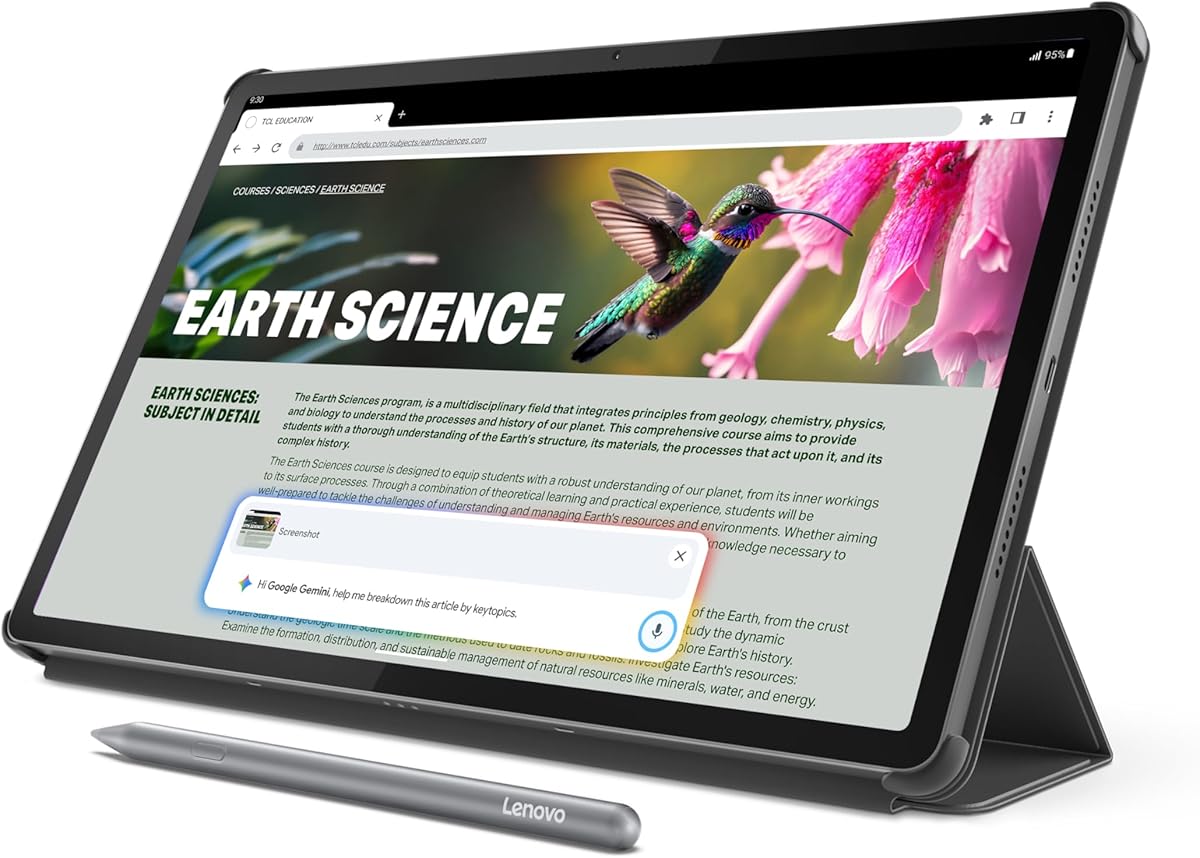
The Lenovo Idea Tab combines a large 2.5K IPS touchscreen with an included Tab Pen and folio case, making it a well-rounded student tablet without a dedicated e-ink writing display. Its 4.3 rating indicates a generally favorable balance of performance, features, and study functionality. It is particularly attractive for students who want one device for handwritten notes, research, learning apps, media, and ordinary tablet tasks.
We may earn a commission when you buy through this link, at no additional cost to you.
Four learning apps are included: Lenovo AI Note, Squid, Nebo, and MyScript Calculator. Together they support writing, organizing, sketching, and calculation, while Circle to Search allows a student to circle visible information and find related results. The 90Hz display, quad Dolby Atmos-tuned speakers, and 72% NTSC color coverage also make it useful for video lectures, collaborative media, and study breaks.
The MediaTek Dimensity 6300 processor, 4GB of memory, and 128GB of storage are adequate for the stated learning and everyday entertainment roles. The 11-inch screen includes TÜV Rheinland low-blue-light hardware features, while the product claims up to 12 hours of YouTube playback and supports 20W charging. Its main limitation is that it is a conventional LCD tablet rather than a highly specialized monochrome e-ink notebook.
The Lenovo Idea Tab is best for budget-conscious students who want more than a writing pad but do not need an AI-focused paper tablet. The included pen and case simplify setup, while the broad app support adds flexibility. It is less compelling for students who prioritize sunlight readability, distraction-free writing, or long intervals away from a charger.
The Tab Pen, folio case, and collection of learning apps provide a useful starting point without requiring the student to assemble a separate stylus and protective setup. Lenovo AI Note, Nebo, and Squid cover several common ways of organizing class material.
The 2.5K IPS panel, 90Hz refresh rate, speakers, and standard Android tablet environment make this a more flexible study device. It can move between annotations, research, lecture videos, and assignments without changing to a separate paper notebook.
We may earn a commission when you buy through this link, at no additional cost to you.
The Noteorius Smart Pen system takes a different approach from conventional tablets by letting students write on a reusable digital notepad while capturing the strokes in an app. Its 3.5 rating is the second-lowest among rated products in the list, so buyers should assess compatibility and workflow carefully. The core appeal is its natural writing surface and freedom from a subscription.
We may earn a commission when you buy through this link, at no additional cost to you.
Uncap the smart pen and it powers on automatically. As the student writes, the system records each stroke and stores it until it syncs to the free Noteorius app. Notes can remain in that library or be sent to Google Drive, OneNote, Evernote, and Dropbox, which helps students use the system alongside an existing organization setup. One writing surface can also be reused for page after page.
The smart pen reportedly operates for weeks on a single charge, while the notepad itself does not require charging. The surface is designed to tolerate ordinary scuffs and smudges because the stored notes are captured by the pen rather than remaining on the pad. This makes the system attractive to students who prefer writing on paper and want a digital backup without using a glowing screen during class.
This is a compelling choice for students who actively resist glass-screen writing or already rely on cloud services such as OneNote or Google Drive. It is less appropriate for anyone who needs a full-size tablet, document reader, or rich color display. Before buying, confirm smartphone or computer support, app availability, and the process for exporting pages into the student's preferred note system.
Because the pen records what is written on a paper-like surface, students can retain a familiar hand-writing rhythm. The approach also allows the notepad to be cleared and reused rather than consuming a fresh page for every lecture.
Sending pages to Google Drive, OneNote, Evernote, or Dropbox is one of the system's most useful student features. It can serve as a capture tool for a larger digital workflow instead of locking every page inside one proprietary library.
We may earn a commission when you buy through this link, at no additional cost to you.
The 12-inch LCD Writing Tablet is a reusable notepad designed around large handwriting, calculations, diagrams, and planning rather than full tablet computing. No customer rating was supplied for this listing, so it is best evaluated from its stated features. The edge-to-edge display and folio case make it look and function more like a large paper notebook.
We may earn a commission when you buy through this link, at no additional cost to you.
Its pressure-sensitive LCD surface is described as producing no blue light, glare, or flicker, while only responding to the stylus tip so a resting palm does not create unwanted marks. A one-tap erase function clears the page, and a content lock helps prevent accidental deletion. The included stitched PU leather folio protects the device and folds it into a stand for lectures, meetings, or desk work.
Unlike many connected options, the supplied information does not describe note synchronization, OCR, cloud storage, or a learning application ecosystem. Its main advantages are therefore simplicity, a large writing surface, and a rechargeable design. The built-in battery is said to last as long as six months on one charge, and the 0.2-inch body weighs under half a pound.
This tablet is a practical option for students who want a low-distraction, reusable page for class lists, equations, sketches, and daily planning. It is less suitable for anyone who expects searchable notes, automatic transcription, document libraries, or direct synchronization with a phone or computer. Confirm what is included in the package and whether a stylus is supplied before ordering.
The 12-inch bezel-free panel creates a broad surface for lengthy notes or technical diagrams. That extra area can be especially helpful in design, mathematics, and science classes where students need room to work through problems.
The rechargeable battery, content lock, and one-tap erase make the pad approachable for students who do not want to manage a complex app. The folio adds protection and creates a stable hands-free viewing angle.
We may earn a commission when you buy through this link, at no additional cost to you.
The Ophaya Smart Pen records handwriting on a conventional-looking paper surface and synchronizes it with the Ophaya Pro+ app for iOS and Android. Its 4.0 rating reflects a functional middle ground between a traditional pen and a full tablet. The most distinctive study feature is its ability to associate audio with the notes being written.
We may earn a commission when you buy through this link, at no additional cost to you.
Handwriting recognition makes the captured content searchable, while OCR can convert notes into editable digital text and a Word file. Students can share the results in Word, PDF, PNG, MP4, or video formats, which is useful for collaborative projects and study groups. The included app can also connect recorded phone audio to the corresponding written pages, allowing a student to hear an explanation again alongside the relevant note.
Offline storage is a meaningful safeguard for classrooms with unreliable wireless service. The pen can continue saving content without a phone connection, then upload it automatically after reconnection. This reduces the risk of losing lecture material. The workflow still depends on compatible devices, the app, and correct recording activation, so students should confirm setup requirements before class begins.
The Ophaya Smart Pen is well suited to students who want to retain the experience of writing on paper while gaining searchable text, editable files, audio playback, and sharing options. It is not a complete tablet for reading textbooks or browsing the web. Its strongest appeal lies in converting a natural note-taking habit into a more flexible digital study system.
Audio can be synchronized with the notes created during a lecture, giving students a clearer way to reconstruct verbal explanations. The recording uses the connected phone's microphone, so test the app and permissions before relying on it for important classes.
OCR and handwriting recognition turn captured pages into content that can be searched, edited, and shared. This makes the pen more useful for revision than an ordinary paper notebook and reduces the need to rewrite class summaries.
We may earn a commission when you buy through this link, at no additional cost to you.
The Ophaya Pro+ Smart Pen and Writing Board set has a 4.7 rating, the highest customer rating among the products in this guide. It captures writing on the included board and synchronizes every stroke to a phone through the Ophaya Pro+ app. The system is designed for students who want digital note storage without carrying a full tablet during every lecture.
We may earn a commission when you buy through this link, at no additional cost to you.
Handwritten content can be converted through OCR into searchable text and shared as a Word document. Supported storage and sharing formats include PDF, Word, PNG, GIF, and MP4, while multiple PDFs or PNG files can be combined before sharing. Users can customize pen thickness and colors and use an eraser tool in the app, allowing the same captured material to be reorganized after class.
The board also supports offline note storage, with captured work uploading after the phone reconnects. Audio playback is available through the app, but the smart pen itself does not contain a microphone; the connected phone's microphone captures the sound. The box includes one smart pen, one writing board, two plastic pen nibs, and a charging cable, so students should check whether a case or additional nibs are needed.
This is an excellent choice for students who prioritize rapid digitization, searchable notes, and flexible exports. Its 4.7 rating should not be treated as a guarantee of universal app compatibility, so confirm that the app operates on the student's phone and that the included nibs suit the preferred writing style. It is best suited to note capture and sharing rather than textbook reading.
Real-time synchronization means the class does not need to end before notes are stored digitally. That reduces the chance of misplaced paper and gives students a head start on organizing lecture content.
The range of document, image, and video formats makes captured pages easier to incorporate into different assignments. Searchable OCR adds long-term utility once a student accumulates several semesters of notes.
We may earn a commission when you buy through this link, at no additional cost to you.
The Penstar eNote 2 is a 10.3-inch e-ink notebook designed to provide a focused, book-like study experience with advanced stylus control. Its 4.3 rating indicates a strong result, while the combination of a 300-ppi screen, 8192 pressure levels, and a four-week claimed battery makes it one of the most complete dedicated paper-tablet options here.
We may earn a commission when you buy through this link, at no additional cost to you.
The display is described as clearer and less hazy than many e-ink screens, with text positioned closer to the surface. An updated pressure-sensitive stylus and reduced invisible lag are intended to make pen strokes track naturally. Students can annotate PDFs, read books, split documents across two screens, and write alongside reference material. The Android 14 system also supports third-party apps and custom button controls.
AI tools include real-time voice-to-text, handwriting-to-text conversion, note summaries, and organization with folders and tags. The device supports more than 35 file formats, including PDF, EPUB, MOBI, DOC, DOCX, PPT, PPTX, RTF, TXT, HTML, and several document and archive types. The main limitation is the monochrome nature of e-ink, which is better for reading and writing than color highlighting, drawing, or watching video.
The Penstar eNote 2 is ideal for students who want an e-ink reading and writing device with substantial format support and a stylus-focused experience. The bundle includes a high-precision B5 digital stylus, ten spare marker tips, a magnetic folio, a charging cable, and a quick-start guide. Its premium position is justified by the combination of e-ink clarity, pressure control, storage, and document versatility.
The 2480-by-1860, 300-ppi panel is designed to remain readable in bright environments and resemble printed text. That makes it a strong option for long reading sessions, textbook annotation, and distraction-light revision.
Support for dozens of document formats, split-screen reading, handwriting conversion, and tagging creates a useful library workflow. The included stylus, replacement tips, and magnetic folio make it a fairly complete dedicated notebook package.
We may earn a commission when you buy through this link, at no additional cost to you.
The Samsung Galaxy Tab S10 Lite combines a 10.9-inch LCD, S Pen support, intelligent note features, and expandable storage in a general-purpose Android tablet. Its 4.6 rating makes it one of the strongest-rated products in the guide. It is a good choice for students who want note-taking within a broader entertainment and productivity device.
We may earn a commission when you buy through this link, at no additional cost to you.
The S Pen supports writing, drawing, and mathematical work, while Galaxy intelligence features include Circle to Search, translation, note cleanup, and equation solving. An AI Hot Key can be accessed through a compatible keyboard to initiate web searches and other tasks. The product information also describes continuity with other Galaxy devices, including answering calls and moving a note between a tablet, laptop, and phone.
The Exynos 1380 processor, 6GB of memory, and 128GB of internal storage provide room for apps, lecture notes, documents, and media. Storage can be expanded with a microSD card by up to 2TB. Battery life is claimed at up to 16 hours, with a full charge in about two hours using Super Fast Charging. Vision Booster adjusts brightness to the environment for easier reading.
This tablet is ideal for students who want more color, multimedia flexibility, and ecosystem integration than a dedicated e-ink notebook provides. It is less focused for long reading in direct sunlight and may not include the S Pen with every configuration, so buyers should verify the box contents. Its broad feature set makes it particularly appealing as a single-device replacement for notebooks, media consumption, and everyday coursework.
Circle to Search, translation, note cleanup, and equation solving support common student tasks. These features are particularly handy when moving from a recorded lecture to a cleaned-up set of notes or when researching an unfamiliar term.
Six gigabytes of memory and expandable storage give the Tab S10 Lite more room for a mixed library of notes, applications, videos, and documents. Its long claimed battery life also suits travel between classes and study locations.
We may earn a commission when you buy through this link, at no additional cost to you.
The Lenovo Idea Tab Pro is a large, high-resolution student tablet with a 12.7-inch 3K LCD, an included Tab Pen Plus, and a folio case. Its 4.6 rating places it among the best-rated devices in the list. It suits students who want a generous canvas for handwriting and annotation while retaining the performance needed for research, media, and multitasking.
We may earn a commission when you buy through this link, at no additional cost to you.
The MediaTek Dimensity 8300 processor and Wi-Fi 6E support are designed for smooth multitasking and efficient downloads, while 8GB of memory and 128GB of storage provide useful headroom. Google Gemini can assist with study questions, and Circle to Search lets a student circle on-screen information with a finger or the included pen. The product details note that compatibility and availability of Google features can vary.
The quad JBL Dolby Atmos speakers make the tablet well suited to streamed lectures and study breaks. It also has a 360Hz touch sampling rate and support for 90fps gaming, though those gaming specifications are less central to note-taking. Battery life is listed at up to 11 hours of unplugged video, with 45W rapid charging for longer days. Low Blue Light certification and mono or chromatic display modes offer viewing options for different study conditions.
The Idea Tab Pro is a compelling option for students who value screen size, detail, audio, and integrated writing accessories. It is particularly useful for students reviewing dense diagrams, editing handwritten assignments, or using a single tablet for coursework and entertainment. As a conventional LCD model, it is not designed for the low-glare, sunlight-oriented reading experience of an e-ink notebook.
A 12.7-inch 3K panel gives students ample space for documents, diagrams, and handwritten annotations. The high resolution can also make small text and detailed reference material easier to inspect.
The included Tab Pen Plus and folio cover the basics, while Circle to Search, Gemini, strong speakers, and rapid charging support a broader study routine. It works well for students who study with videos and need one device for lectures, research, and notes.
We may earn a commission when you buy through this link, at no additional cost to you.
The Mini Double LCD Pad is a compact reusable writing tablet with a 6.5-inch display on each side. Its 4.0 rating indicates a straightforward product aimed at quick lists, short notes, sketches, and study aids. It is the most portable entry in the guide, but it operates as a local writing surface rather than a connected tablet with a note library.
We may earn a commission when you buy through this link, at no additional cost to you.
The phone-like body is only 0.2 inches thick and weighs 0.11 pounds, making the device easy to carry between classes. Both sides can be used for different purposes, such as keeping lecture notes on one and a checklist or timer-related reminders on the other. Pressure-sensitive writing creates blue-green lines, while the anti-fingerprint screen helps maintain a clean appearance.
A lock and unlock switch protects notes from accidental erasure, and each side has its own erase button. The magnetic stylus can also trigger erasure by touching the designated area. A replaceable battery extends use without a charging routine, and the manufacturer describes the notepad as reusable more than 100,000 times. The product works best in well-lit environments because LCD clarity depends on ambient lighting.
This is a useful option for students who want an inexpensive, distraction-free scratch pad for short-form notes without managing apps or cloud accounts. It cannot provide searchable text, audio recording, automatic transcription, or document storage. Those limitations make it a supplementary tool rather than a complete digital notebook, but its portability and dual screens are helpful for busy students.
The double-sided design gives the student separate writing areas while preserving a slim profile. One side can remain dedicated to current lecture notes while the other stores reminders, a formula list, or a daily plan.
The replaceable battery and one-touch erase controls support regular use without charging or complex setup. The lock switch adds useful protection when the pad is carried in a crowded school bag.
We may earn a commission when you buy through this link, at no additional cost to you.
The right student tablet depends on how you capture, organize, and revisit information. Screen technology, stylus behavior, app support, portability, battery life, and connectivity should be considered together rather than judging a device by one headline specification.
Students who want a traditional appearance may favor e-ink, which resembles printed paper, remains readable in bright conditions, and minimizes distracting color and light. A full-color LCD is better for highlighting, diagrams, video lectures, and general tablet functions. Paper-based smart-pen systems offer another approach by capturing strokes on a reusable notepad while retaining a familiar writing surface. Consider whether the primary goal is distraction-free handwriting or a multifunctional color study display.
A useful stylus should track smoothly, register pressure appropriately, avoid unwanted palm input, and remain comfortable during long sessions. Pressure levels influence line variation and are particularly valuable for sketching, underlining, and handwriting. Some tablets include a pen and folio, while others provide a dedicated stylus that needs no charging. Check whether spare tips are included and whether the device supports palm rejection or requires a specific active digitizer.
Capturing notes is only the first step; students also need to find them later. Look for folders, tags, searchable handwriting, cloud synchronization, and exports to services such as OneNote, Google Drive, Evernote, or Dropbox. Dedicated notebooks may provide stronger document libraries, while general tablets support a broader range of third-party applications. Make sure the app works with the student's phone or computer and confirm whether any advanced features require a subscription.
AI tools can transcribe permitted recordings, summarize notes, convert handwriting into text, answer questions, and extract action items. These features can shorten the time required to turn a lecture into revision material. However, some transcription and cloud functions require connectivity, and account terms can change. Students should confirm language support, offline behavior, recording permissions, and whether the relevant features are free, temporary, or membership-based.
A device carried between several classes each day should be comfortable to hold and easy to store. Compact double-screen pads suit quick lists, while 10.3-, 11-, 10.9-, and 12.7-inch tablets offer more room for annotations and reading. Consider the included folio, the weight of the stylus, and whether the device can be used comfortably on a desk. A larger screen may improve document work but can be less convenient in a packed lecture hall.
Battery claims range from several weeks on dedicated e-ink notebooks to shorter but still substantial all-day use on color tablets. AI transcription, recording, video, and high-refresh displays can increase power use, so compare real-world use rather than maximum figures alone. Students should also check charging speed and whether the product uses USB-C. A long battery life is valuable when chargers are inconvenient, but rapid charging can be more relevant for students who study near an outlet.
Textbooks, lecture slides, scanned documents, and notes may arrive in several formats. Dedicated e-ink models often list extensive document support, whereas general tablets provide a broader application ecosystem but may not optimize every annotation workflow. Look for PDF, EPUB, DOC, DOCX, PPT, TXT, and image support as appropriate. Students should also confirm whether cloud syncing depends on a proprietary app and whether files can be exported without losing organization.
Lecture recordings and handwritten notes may contain sensitive academic information. Local storage, password protection, encrypted transmission, and offline capture can offer students greater control. Cloud services provide backup but introduce another system and may rely on an account or membership. Review the manufacturer's stated privacy practices, recording permissions, data locations, and deletion options. Use study tools only where recording is permitted and avoid capturing private conversations without consent.
Begin by configuring the device properly rather than waiting until the first lecture. Charge it fully, install the required note or companion app, connect the stylus, and create a simple folder structure for each course. Spend a few minutes testing handwriting conversion, search, export, and offline behavior. If the tablet includes a folio, use it during transport and confirm that the stylus fits securely without pressing against the screen.
Develop a consistent page system with a date, course name, and short topic heading. Use one visual convention for definitions, questions, summaries, and action items, and review the digital version of each lecture before the next class. For recorded material, obtain permission, enable recording before it begins, and place a clear marker on the page where the recording starts. Periodically back up essential notes to the location your product supports.
Care for the writing surface and stylus according to the manufacturer's instructions. Keep the device in its folio when carrying it, avoid pressing sharp objects against the screen, and clean the surface with a soft, dry or lightly damp cloth rather than abrasive cleaners. Store the stylus in a stable place, replace worn tips as needed, and avoid exposing the device to excessive heat, moisture, or liquids. Fully charge it before long travel and update its software when connected to a reliable network.
E-ink is usually better for long reading sessions and distraction-free handwritten notes because its display resembles printed paper and remains readable in bright environments. A color LCD is better for highlighted pages, detailed diagrams, video lectures, and general app use. The right choice depends on whether the student values a focused notebook or a flexible multipurpose tablet.
Writing and basic note capture can work offline on many models, particularly smart-pen systems and dedicated e-ink notebooks with local storage. Cloud synchronization, AI transcription, summaries, and some handwriting conversion features may require a connection. Check the specifications for offline support and avoid assuming every advanced function remains available without Wi-Fi or cellular service.
Yes, but screen choice and stylus response matter. E-ink devices are effective for monochrome equations, annotations, and textbook notes, while color LCDs are stronger for color-coded diagrams and detailed illustrations. A pressure-sensitive stylus and palm rejection improve the experience, so students should test drawing and calculation tools before committing to a model.
Modern OCR can produce useful editable text, but accuracy varies with handwriting, page layout, lighting, and language support. Students should test the recognition function with their own writing style. Keeping headings, spacing, and written text reasonably clear usually helps more than trying to make every handwritten word perfectly legible.
An included stylus usually improves value and reduces setup friction. Dedicated notebooks may include a pressure-sensitive pen, spare tips, and a folio, while some general tablets offer a compatible pen as an optional accessory. Verify the exact package contents because similar tablet names can have different configurations, particularly regarding S Pen or Tab Pen availability.
Some models support transcription, summaries, or synchronized lecture audio, while simpler writing pads do not store or process audio. On smart-pen systems, the connected phone may provide the microphone rather than the pen itself. Students should check device specifications, enable the required app settings, and obtain permission before recording any class or conversation.
Create a consistent folder for each course and date every imported page. Use tags or titles for topics, exam units, assignments, and difficult concepts, then add a short summary after each lecture. A reliable naming system makes search more effective and makes exported material easier to revisit during revision.
Cloud storage is useful for backup, sharing, and moving notes between devices, but it is not always mandatory. Local storage can support offline capture, while some products also export to Google Drive, OneNote, Evernote, or Dropbox. Compare available storage, account requirements, subscription terms, and export options before deciding how important cloud integration is to your routine.
The AINOTE Air stands out as the most complete dedicated option for students who want natural color handwriting combined with transcription, summaries, multilingual conversion, and local storage. The Lenovo Idea Tab is a strong budget-oriented all-rounder with a sharp screen, included pen, and learning apps, while the Penstar eNote 2 is the premium choice for focused e-ink reading, annotation, and document support.
Before choosing, prioritize the way you actually study. Students who need focused reading should examine e-ink, while those who handle color diagrams, videos, and varied apps may prefer a color tablet. Pen-based systems are worth considering for anyone who wants to write naturally while retaining searchable digital pages. Battery life, included accessories, offline behavior, cloud requirements, and app compatibility should all be checked before ordering.
Prices and configurations change frequently, and bundles may vary by seller or listing. Review the current product page for the exact display, memory, stylus, storage, and included accessories, then confirm any membership terms or region-specific app requirements. With those checks in place, you can choose a paperless note-taking setup that supports lectures, revision, research, and everyday student organization.