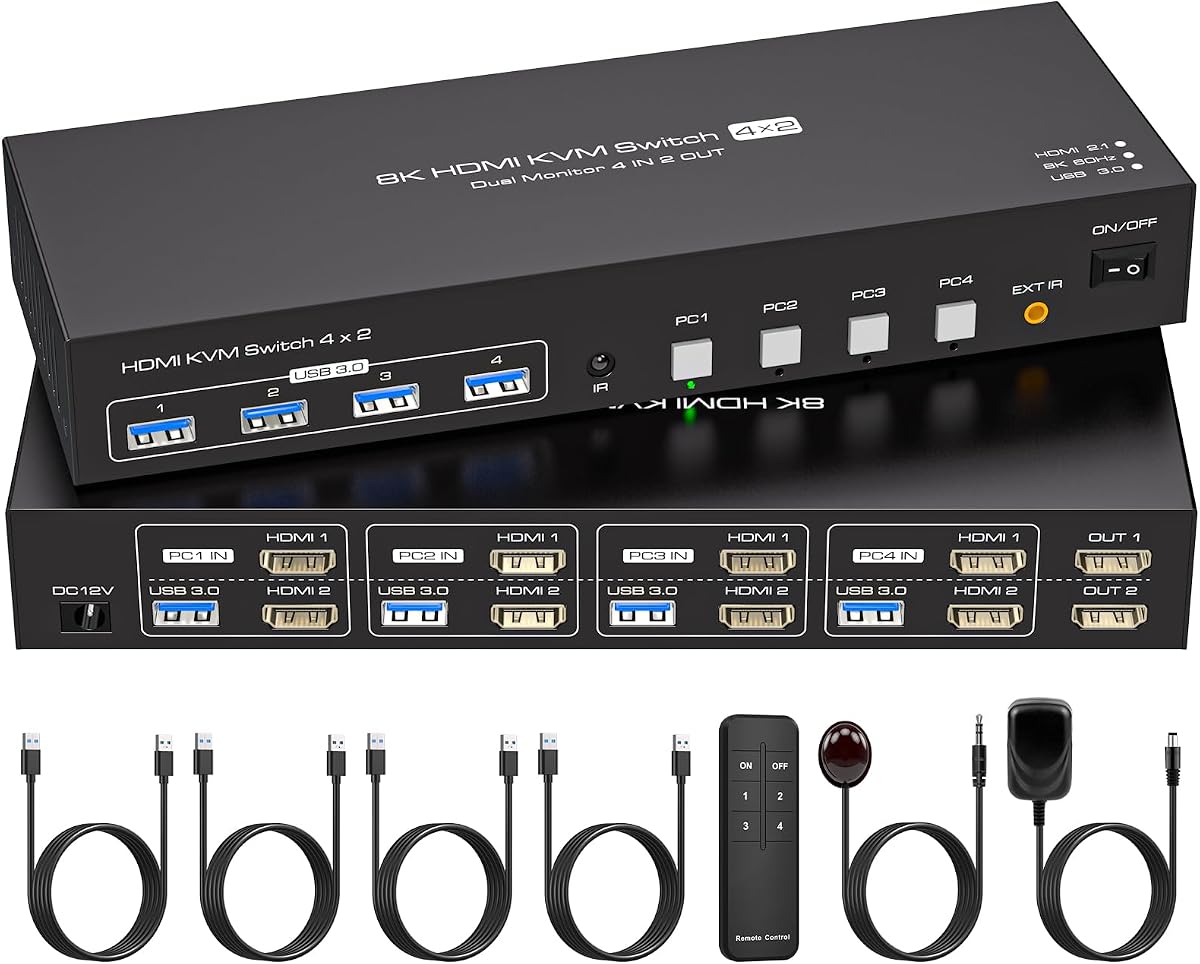
4 Port Dual Monitor KVM Switch
4.7Editor score
Four computers, two monitors
8K at 60Hz support
Built-in EDID emulation
Infrared remote control
Four USB 3.0 ports
Our KVM Switches guide compares ten switches for monitor count, computer count, video resolution, USB support, switching methods, EDID, and ease of setup.
KVM switches make it easier to share displays, keyboards, mice, and other peripherals between multiple computers without reconnecting cables every time you change tasks. A worthwhile model should match your computer outputs, support every monitor you plan to connect, provide dependable switching, and simplify cable management rather than introduce compatibility problems.
We compared these ten KVM switches by video standards, supported computer and monitor configurations, USB connectivity, resolution capabilities, EDID behavior, switching controls, and included accessories. The list covers basic two-computer units, dual- and triple-monitor models, four-computer switches, and a network-based remote KVM for managing systems at a distance.
Each review highlights the configuration best suited to the product and explains the tradeoffs visible in its specifications. The top choices stand out for rating, feature balance, and targeted strengths, while the other entries provide worthwhile alternatives for simpler desks, mixed interfaces, or specialized remote-access needs; current listings can change.
4.7Editor score
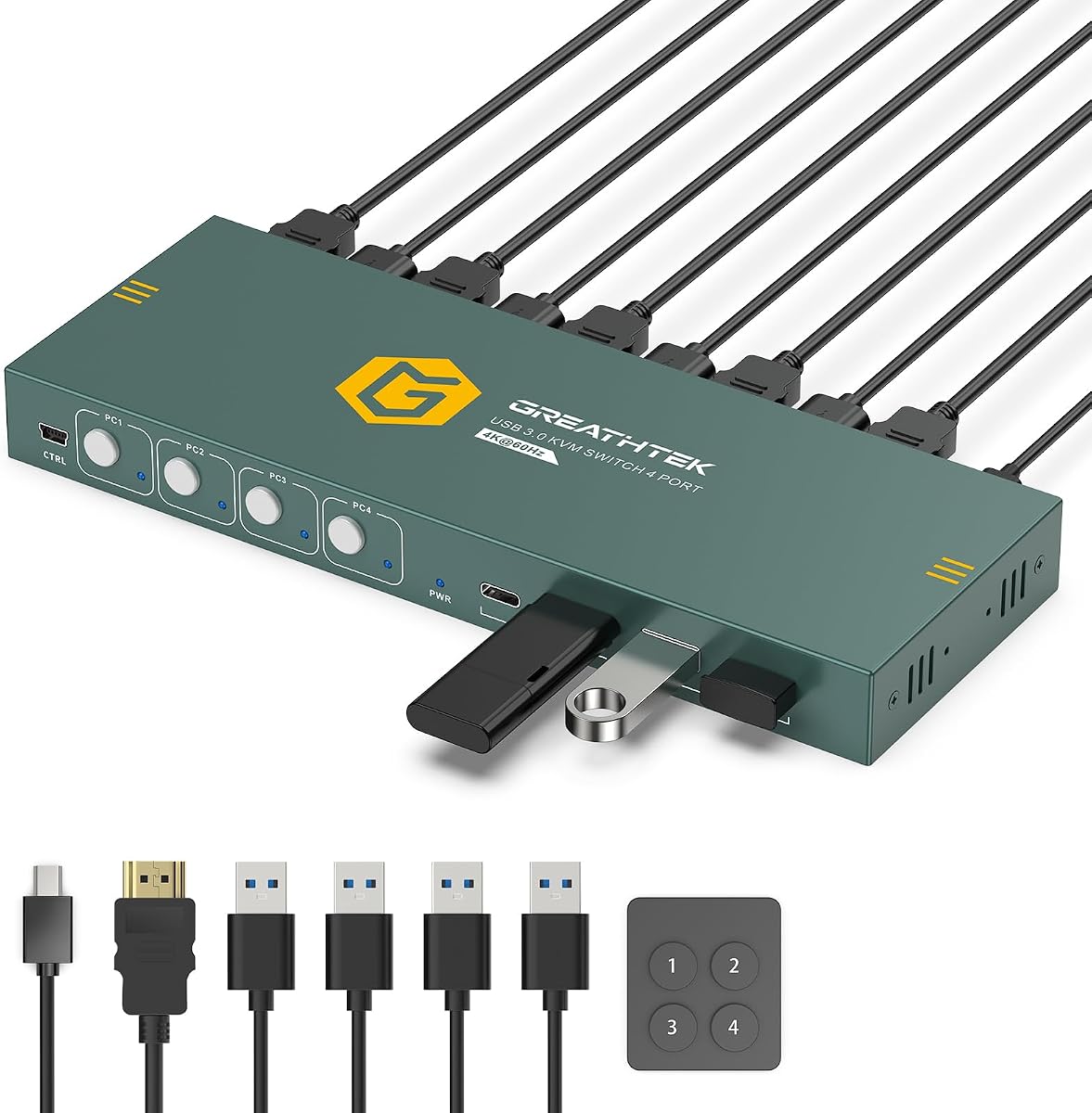
4.8Editor score

4.2Editor score
The table below compares each KVM switch by its core use case, display capacity, video support, and switching controls, making it easier to identify the model that fits a particular workstation.




The UGREEN 8K@60Hz HDMI Displayport KVM Switch 3 Monitors 2 Computers is built for power users who need more than the usual one- or two-display arrangement. It connects two computers to three monitors through two DisplayPort 1.4 inputs plus one HDMI 2.1 input, while sharing four USB 3.0 ports for standard desktop peripherals. Its 3.9 rating reflects a capable specification set, but the demanding hardware requirements make careful compatibility checks essential.
We may earn a commission when you buy through this link, at no additional cost to you.
The strongest feature is its support for up to 8K at 60Hz and 4K at 240Hz, along with HDR10+, HDCP 2.3 and 1.4, VRR, FreeSync, and G-Sync. Each computer needs two DisplayPort connections and one HDMI connection to achieve the full three-screen arrangement. Both source systems must independently support triple-monitor output, and the monitors and cables must also meet the resolution requirements. These are meaningful capabilities for content creation, simulation, and advanced productivity setups.
Switching is available through the front button or a desktop controller, allowing the main unit to sit away from the immediate work area. Mirror and extended display modes are supported, but keyboard hotkey toggles and EDID emulation are not. The switch also needs its power adapter connected, and a docking station or signal converter could introduce compatibility issues. These limitations make the product less convenient than simpler alternatives for a basic dual-PC desk.
This is a strong choice for users who genuinely need three displays, mixed video standards, and demanding resolution or refresh-rate support. It is less suitable for office PCs limited to one or two outputs, laptops without the required ports, or anyone who depends on EDID emulation and hotkey controls. For a properly equipped workstation, however, it delivers an unusually capable connection hub and a substantial accessory package.
The combination of two DisplayPort 1.4 connections and one HDMI 2.1 connection allows a workstation to combine high-refresh displays with an HDMI screen. Support for 8K at 60Hz and 4K at 240Hz makes the unit relevant to demanding creative and technical users, provided every component in the signal chain supports the selected mode.
A panel button and wired desktop controller make source changes straightforward even when the enclosure is placed away from the desk. The lack of hotkey switching and EDID emulation means some users will need to configure display arrangements manually whenever they move between systems.
We may earn a commission when you buy through this link, at no additional cost to you.
The Hearvo USB 3.0 HDMI KVM Switch for 2 Computers 1 Monitor, 4K@60Hz, S7232H is a focused solution for users who need one keyboard, one mouse, and one display shared between two systems. It carries a 4.0 rating and offers a straightforward combination of HDMI switching, four USB 3.0 connections, adaptive EDID, and plug-and-play installation without an external power supply.
We may earn a commission when you buy through this link, at no additional cost to you.
Its four USB 3.0 ports include three USB-A connections and one USB-C data port, with stated transfer speeds up to 5Gbps. That makes it possible to share keyboards, mice, scanners, printers, flash drives, headsets, and webcams without keeping separate peripheral sets at each computer. The video side supports 4K at 60Hz, HDCP 2.2, 4K at 30Hz, 2K, 3D, and 1080p, giving it useful flexibility for office displays and general multimedia work.
Users can switch with the button on the KVM or a wired remote, which is useful when the unit is hidden under a desk or positioned outside the main work area. Adaptive EDID helps the system recognize the display and optimize its settings. The limitation is obvious: this is strictly a one-monitor model, and all USB devices share the KVM's connection to the active computer. It is therefore most appropriate when the workstation is simple and cable reduction is the main objective.
The Hearvo model is a balanced recommendation for a two-PC, one-monitor office or home setup. It avoids unnecessary multi-display complexity, includes the two USB cables needed for host connections, and provides both panel and remote controls. Buyers should verify that their computers have suitable HDMI outputs and accept that the switch cannot manage multiple screens.
Two computer inputs and one monitor output keep the arrangement understandable. The included host USB cables and driver-free design reduce setup work, while the wired remote makes switching possible even when the switch is tucked away.
The inclusion of one USB-C data port broadens the range of devices that can be shared, although it does not mean the product accepts a USB-C video source directly. Users still need to confirm that their computer-to-monitor video connection uses a compatible format.
We may earn a commission when you buy through this link, at no additional cost to you.
The Displayport KVM Switch 2 Monitors 2 Computers 4K@144Hz USB3.0 KVM Switch is aimed at gamers, editors, and other users who prioritize high refresh rates. It shares two DisplayPort monitors and four USB 3.0 devices between two computers, supports extended and copy modes, and reaches 4K at 144Hz when the graphics card, displays, cables, and adapters can support that target.
We may earn a commission when you buy through this link, at no additional cost to you.
Its headline specification is the maximum 3840 by 2160 at 144Hz mode, with backward compatibility for DisplayPort 1.2 equipment. The product includes a 12-volt DC power adapter intended to provide a more stable power environment for attached USB devices. Four USB 3.0 ports are rated for data transfer up to 5Gbps, which is suitable for keyboards, mice, printers, storage, and other peripherals. That bandwidth and refresh-rate combination makes this one of the more performance-oriented conventional switches in the group.
A panel button and external wired controller provide two methods of changing sources, and the controller allows the switch to be placed outside the immediate work area. Keyboard hotkeys are not supported. DisplayPort cables are also not included, and each source computer needs two DisplayPort connections plus one USB connection. The final resolution still depends on the source hardware, so its impressive specification should be understood as a maximum rather than a guarantee for every system.
This is a compelling recommendation for a dual-DisplayPort workstation that can drive two high-refresh monitors. It is less suitable for mixed HDMI setups, systems with only one video output, or buyers who expect a published customer rating. Subject to those constraints, the combination of 4K at 144Hz, extended display support, external power, and desktop control is unusually useful for performance-focused users.
Supporting up to 4K at 144Hz makes the switch relevant to high-refresh monitors and compatible graphics hardware. The actual mode depends on the complete signal chain, so users should verify the capabilities of both source computers, both displays, and every DisplayPort cable.
Extended mode allows the two connected displays to function as separate work areas for the active computer, while copy mode presents the same content. That flexibility suits multitasking, monitoring, and game-streaming arrangements where duplicating one image would waste available screen space.
We may earn a commission when you buy through this link, at no additional cost to you.
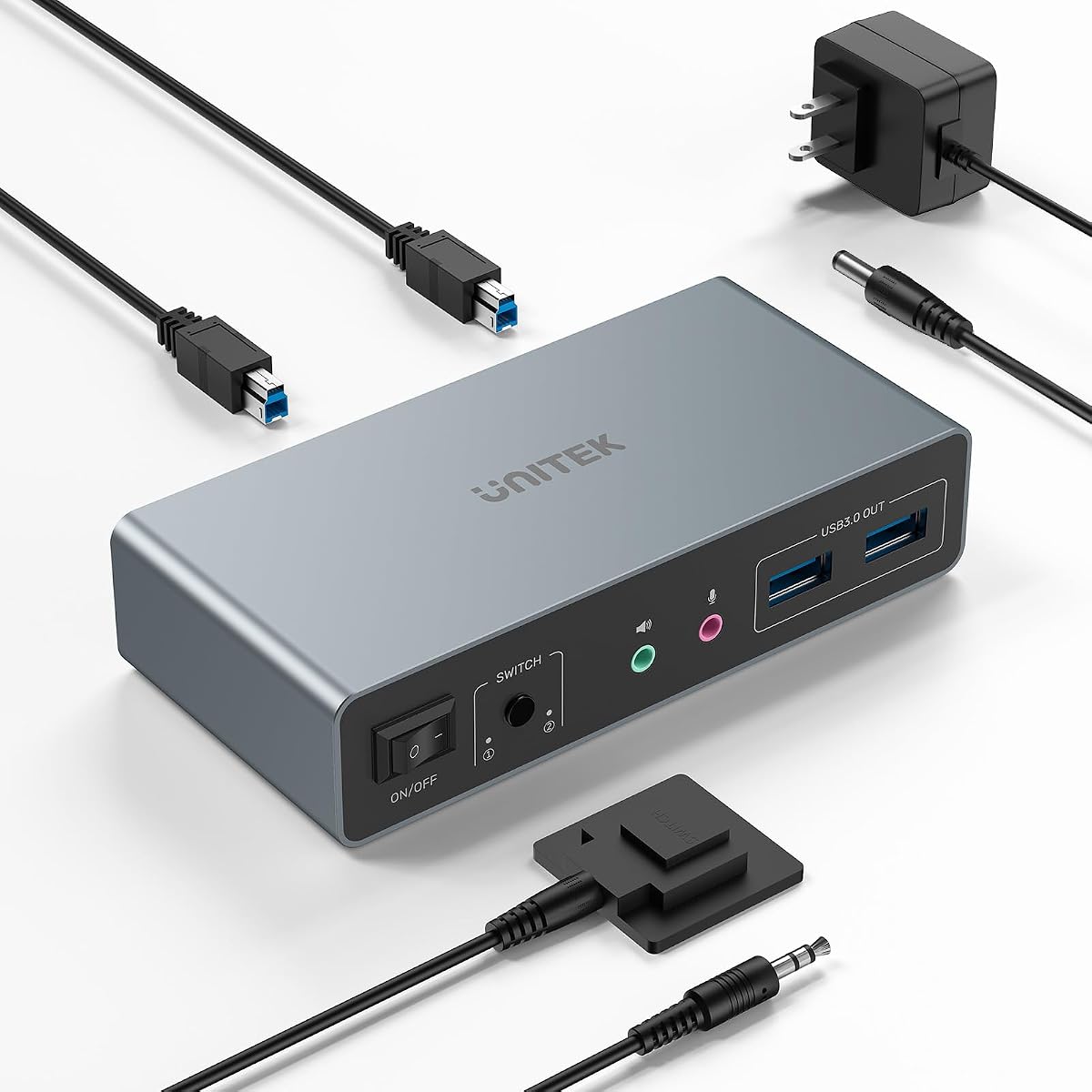
The Unitek KVM Switch 2 Monitors 2 Computers HDMI Displayport Dual Monitor 2 PC offers a balanced approach to managing two desktop computers and two mixed-interface displays. Its 4.5 rating is among the stronger results in this group, and the combination of DisplayPort and HDMI support, four USB 3.0 ports, and both panel and desktop switching suits a permanent workstation more than a temporary laptop arrangement.
We may earn a commission when you buy through this link, at no additional cost to you.
Video support extends to 4K at 60Hz, with compatibility listed for 2K, 3D, 1080p, HDMI 2.0, HDCP 2.2 and 1.4, USB 2.0, and HDR. The switch connects two computers to dual monitors, while four USB-A ports allow shared use of a keyboard, mouse, hard drive, flash drive, printer, and other peripherals. Mic and headset support adds further flexibility for communication and audio applications.
The most important limitation is explicit: the product is designed for desktop hosts and is not compatible with laptops. It also requires the included USB A-to-B cables, and simultaneous HDMI and DisplayPort output requires every host to be connected with the necessary USB, HDMI, and DisplayPort cables. A 5V 2A power adapter is included for more stable operation with multiple USB devices, while a desktop controller can be used when the unit is positioned away from the desk.
The Unitek switch is a sensible recommendation for users with two desktop PCs, one DisplayPort display, and one HDMI display. It combines a strong customer rating with useful resolution support and flexible USB sharing. Buyers should not consider it for a USB-C-only laptop or for a mixed portable-and-desktop setup, but within its stated desktop-only remit, it offers a capable and straightforward package.
Having both HDMI and DisplayPort is practical when the two monitors use different interfaces. The switch avoids requiring a costly and potentially unreliable conversion chain simply because one display lacks the same connector as the other.
The supplied host cables and stated lack of laptop compatibility make this a purpose-built desktop switch. Users with notebooks should instead look for a model that explicitly supports laptop connections, USB-C video input, or a clearly documented compatible adapter arrangement.
We may earn a commission when you buy through this link, at no additional cost to you.
The HDMI KVM Switch 3 Monitors 2 Computers 4K@60Hz is designed for users whose computers already provide three HDMI outputs. It shares three HDMI monitors and four USB 3.0 devices between two systems, supports both extended and duplicate display arrangements, and includes an external 12-volt power adapter for more stable operation with demanding peripherals.
We may earn a commission when you buy through this link, at no additional cost to you.
Maximum resolution is 4K at 60Hz, with backward compatibility for 4K at 30Hz and 1080p or lower. The all-HDMI design is particularly useful because it avoids mixing HDMI with DisplayPort or requiring HDMI-to-DisplayPort and HDMI-to-DVI or VGA conversion cables. To display three screens simultaneously, each computer must support three-screen output and connect to the KVM with three HDMI cables, plus a USB connection for peripheral control.
A panel button and external wired controller provide convenient switching, and an LED indicates the active device. Keyboard hotkeys are not supported. The four USB 3.0 ports are stated to handle data at up to 5Gbps and remain compatible with older USB devices. The external power supply is helpful for hard drives, webcams, and other peripherals that may draw more power than a host computer can comfortably provide through the switch.
This model is a good fit for a two-PC creative, office, or monitoring desk built entirely around HDMI. Its limitations are substantial for anyone with mixed video outputs or fewer than three available display connections per PC. Since no customer rating is published, the decision should rest more heavily on the exact hardware configuration and included controls than on demonstrated customer feedback.
Using HDMI for all three screens can make a multi-computer desk easier to standardize. It also reduces the risk of adapter-related compatibility issues, provided the source computers genuinely offer three HDMI outputs and support extended displays.
The 12-volt adapter provides a dedicated power path for USB devices that may be unreliable when powered solely through a computer connection. Users should still connect it as directed and should confirm that every shared peripheral is compatible with the switch's USB implementation.
We may earn a commission when you buy through this link, at no additional cost to you.
The 4 Port Dual Monitor HDMI KVM Switch is a feature-rich choice for IT professionals, test benches, and multi-PC offices that need to control four computers through two monitors. Its 4.7 rating is the second-highest available figure among the listed products, and the combination of four computer inputs, 8K support, EDID emulation, and remote selection makes it a premium conventional KVM option.
We may earn a commission when you buy through this link, at no additional cost to you.
The switch can present images up to 8K at 60Hz or 4K at 120Hz when the computers, monitors, and cables support the selected mode. Copy mode shows matching content on both screens, while extended mode creates separate workspaces. Built-in EDID emulation recognizes and stores display parameters, helping preserve window positions and prevent the operating system from rearranging the desktop each time the active source changes.
Four USB 3.0 ports support data rates up to 5Gbps and remain compatible with USB 2.0, 1.1, and 1.0 devices. Switching is handled through front-panel buttons or an infrared remote, with LEDs indicating the selected computer. Hotkey switching is not supported. The external 12V 1A power supply should be connected for stable operation, and every source computer needs two HDMI outputs to drive both displays.
This is an excellent option for a four-machine control room or a productivity desk where two large displays are essential. It exceeds the needs of a simple two-computer home office, but for organizations seeking fewer peripherals and less manual cable management, its 4.7 rating, high-resolution ceiling, and EDID behavior provide a convincing package. The key requirement is source hardware with sufficient HDMI outputs.
EDID emulation is one of the most valuable features in a frequently switched multi-computer environment. By helping the active computer retain the recognized display configuration, the switch reduces disruption when moving between workstations or testing several systems.
Four numbered computer inputs, shared USB devices, and remote selection make the switch convenient for IT stations, laboratories, and monitoring desks. The arrangement removes the repeated task of unplugging a keyboard, mouse, and video cable whenever a different system needs attention.
We may earn a commission when you buy through this link, at no additional cost to you.
The GL.iNet GL-RM10 Comet Pro Remote KVM is unlike the conventional desk switches in this guide because it provides remote, network-based system access. It carries a 4.5 rating and uses dual-band Wi-Fi 6 to help users manage a remote computer, complete support tasks, or recover a system without sitting directly in front of it. A local display continues to show the connected machine while remote viewing is active.
We may earn a commission when you buy through this link, at no additional cost to you.
Its video passthrough supports up to 4K at 30FPS using H.264 encoding, and two-way audio supports natural voice interaction during meetings or technical assistance. The built-in 2.22-inch touchscreen provides a local interface for network configuration and service controls. This makes the device particularly useful for home labs, small offices, and remote IT environments where a conventional one-button source switch would be inadequate.
Built-in Tailscale uses WireGuard-based encrypted transmission and direct connection capabilities. Remote access is also available through web-based cloud control for Windows, macOS, and Linux, while the GLKVM app supports Windows, macOS, iOS, and Android. A self-hosted lightweight cloud option is supported on Linux and Ubuntu, including a one-click deployment process for a server with the stated minimum resources.
The most notable use case is disaster recovery. When normal software-based remote tools are unavailable, the device can provide a path to BIOS access, operating system reinstallation, and other recovery tasks. Optional ATX Board or Fingerbot extensions can add remote power control or hard reset, although they are sold separately. This is a specialized product for remote management rather than a simple two-PC cable hub.
The device can provide out-of-band-style access for BIOS interaction, reinstallation, and recovery when ordinary operating system tools are not functioning. That distinction makes it useful to IT departments and technical users who need a path into a machine after a software failure.
Built-in Tailscale, browser-based cloud control, a mobile and desktop application, and self-hosted deployment give administrators several ways to connect. The self-hosted option is particularly attractive to users who want greater control over where the remote-access environment and its data are maintained.
We may earn a commission when you buy through this link, at no additional cost to you.
The UGREEN HDMI KVM Switch 2 Monitors 2 Computers 4K@60Hz is designed for a familiar two-PC, two-monitor arrangement in which both displays use HDMI. Its 3.9 rating sits below the leading products, but the unit combines simple plug-and-play operation, four USB 3.0 ports, extend and mirror modes, and a desktop controller in a package that suits many home and professional offices.
We may earn a commission when you buy through this link, at no additional cost to you.
The switch supports up to 4K at 60Hz and is also compatible with 4K at 30Hz and 1080p or lower. It supports HDMI 2.0, HDCP 2.2 and 1.4, 3D, HDR, and HDR10+, while the four USB connections include three USB-A and one USB-C port with data speeds up to 5Gbps. The package includes four HDMI cables, two USB-A cables, a desktop controller, a user guide, and power adapters for different outlet configurations.
Both source computers need two HDMI outputs to drive the two monitors simultaneously, and each needs its own USB connection for shared peripherals. Only one computer can be active at a time; the two screens cannot display separate sources concurrently. The power adapter should be connected for normal USB operation. EDID emulation and hotkey toggles are not supported, which may lead to occasional display rearrangement or require users to switch through the included controls.
This UGREEN model works well when the goal is uncomplicated HDMI switching across two systems. It can also serve consoles, televisions, and other compatible HDMI sources, as listed in its specifications, although KVM control still depends on proper USB host connections. It is a good general option for users who value a familiar interface and generous cabling, but buyers sensitive to display-layout changes should investigate an EDID-capable alternative.
Four USB 3.0 connections make it possible to move a keyboard, mouse, printer, webcam, storage device, or other peripheral between computers without reconnecting it each time. The included power supply is especially relevant for storage devices and other higher-draw peripherals.
The model switches the full two-monitor desktop between the two connected computers. It does not split the two displays between separate sources, so it is best suited to users who want to move an entire workstation from one system to another.
We may earn a commission when you buy through this link, at no additional cost to you.
The HDMI KVM Switch for 4 Computers 1 Monitor, 4K@60HZ 4 Port KVM Switch stands out with the highest customer rating in this roundup, 4.8. It controls four computers through one monitor, keyboard, mouse, and set of shared USB peripherals, making it a particularly practical choice for IT workstations, test benches, and multi-PC home offices that do not require multiple displays.
We may earn a commission when you buy through this link, at no additional cost to you.
Video support reaches 4K at 60Hz through HDMI 2.0, with backward compatibility for 4K at 30Hz and 1080p and lower. Adaptive EDID detects the connected display and helps match appropriate resolution settings during source changes. Three USB-A 3.0 ports and one USB-C data port provide shared access to a keyboard, mouse, webcam, printer, drive, or other peripheral, with data transfer speeds stated at up to 5Gbps.
Four numbered front-panel buttons and an included wired desktop remote make the active computer easy to identify and select. LEDs show the current choice, while hotkey switching is not supported. The package is unusually complete: it includes one HDMI cable, four USB 3.0 host cables, a power cable, a wired remote, two under-desk mounting brackets, and the associated screws. That inclusion reduces the chance of discovering missing essentials after installation.
The HDMI KVM Switch for 4 Computers 1 Monitor is our top overall recommendation because it combines the strongest available rating with a useful four-source arrangement, adaptive EDID, and a well-equipped package. It does not manage two monitors, and the external power connection should always be used. For a single-display multi-computer desk, it offers an unusually complete and organized solution.
A single screen does not prevent a productive multi-PC workspace when the priority is efficient access to several systems. Four direct source selections reduce the time lost to repeated cable changes and make the arrangement particularly useful for maintenance, testing, and system administration.
The four included USB host cables and under-desk brackets simplify installation for a permanent workstation. A wired remote gives users direct control even when the switch is mounted out of sight, while adaptive EDID helps maintain a consistent display configuration across source changes.
We may earn a commission when you buy through this link, at no additional cost to you.
The HDMI KVM Switch 1 Monitors 2 Computers 4K@60Hz is a compact and uncomplicated option for sharing a single monitor, keyboard, and mouse between two PCs. Its 4.2 rating reflects a straightforward product that avoids external power requirements and provides both panel and wired-controller switching. It is most appropriate for basic office, classroom, or home setups that do not need high-speed USB storage or more than two sources.
We may earn a commission when you buy through this link, at no additional cost to you.
Video output reaches 4K at 60Hz, with backward compatibility for 4K at 30Hz and common 1080p modes. To achieve 4K, the computer, monitor, and cable must all support it, and the product recommends a high-quality HDMI 2.0 cable no longer than 3.3 feet. Conversion cables and adapters may cause flickering, intermittent disconnection, or a complete failure to transmit an image, making direct HDMI connections preferable.
The two USB 2.0 ports operate at up to 480Mbps and are intended for a wired keyboard, mouse, and other compatible USB 2.0 devices. Green and blue LEDs identify the active computer. A panel button or the included desktop controller can change sources, although hotkey switching is not supported. The device is hot-swappable, and no driver or external power supply is needed.
Mac use is explicitly not recommended, and HDMI cables are not included, so buyers must verify their existing equipment before committing. Subject to those caveats, this is a good entry-level choice for a two-PC, one-monitor desk. Its strengths are simplicity, low power requirements, and a cleaner workspace, while users who transfer large files or rely on fast external storage should choose a USB 3.0 model instead.
Operating without an external power supply makes setup especially easy for a basic two-computer desk. Panel controls and a wired extension provide flexible switching, while the status lights help prevent uncertainty about which computer is currently active.
The stated cable guidance matters for anyone aiming to run 4K at 60Hz. Short, compliant HDMI 2.0 cables reduce the chance of signal instability, and avoiding conversion adapters is especially important because those accessories may cause flickering or intermittent disconnections.
We may earn a commission when you buy through this link, at no additional cost to you.
The best KVM switch is determined less by input count alone and more by whether its video interfaces, resolution limits, USB capabilities, and controls match the exact equipment in your desk. Review the following factors before making a selection.
Begin by counting the exact number of computers and displays that must operate at the same time. A two-computer, one-monitor switch is ideal for a simple office, while dual-monitor models are better suited to a full-screen productivity station. Three-monitor switches add considerable complexity, and four-computer configurations are most useful for IT teams, testing environments, and specialized desks. The selected KVM must support the complete intended arrangement rather than merely having enough labeled ports.
Match the product's sharing model as well. Some dual-monitor switches move both displays together from one active computer to another, while others can place separate sources on separate displays. The UGREEN dual-monitor unit, for example, can show only one source across both screens at a time. Verify this behavior before buying if you plan to run content from two computers simultaneously.
Every connected computer and monitor must have a matching video connection. HDMI-only products are straightforward when all displays use HDMI, while DisplayPort models are natural choices for high-refresh desktop monitor arrangements. Mixed HDMI and DisplayPort units offer flexibility but require the correct host cables and may not support the same features on every output. Adapters and signal converters can introduce compatibility problems, so direct connections are preferable whenever possible.
Also consider the direction of each interface. A USB-C port on a KVM may be a data-only connection for shared peripherals rather than a video input. Laptops with USB-C displays may require a separate adapter arrangement. Before purchasing, list the exact connector type available on each computer and monitor, then confirm that the switch supports those ports without relying on an undocumented conversion chain.
Maximum resolution is only one part of the equation. The source computer's graphics output, monitor, cables, adapters, operating system, and selected display mode all affect the final result. A switch advertised for 8K at 60Hz does not create 8K support where a computer or display cannot provide it, and 4K at 144Hz requires compatible hardware throughout the entire chain.
Choose a model that meets your actual workload rather than the highest headline mode available. The DisplayPort switch supporting 4K at 144Hz is compelling for high-refresh gaming, while 4K at 60Hz is more than adequate for many professional office setups. Users should also confirm whether the intended configuration requires extended and copy modes, since a product that supports only one of these may not suit a multitasking workflow.
USB 2.0 is sufficient for keyboards, mice, webcams, and light storage tasks, while USB 3.0 offers much faster transfer rates for external drives, flash devices, and larger files. All shared peripherals connect through the active computer, so consider whether a single shared bus will be sufficient for your routine. A four-port USB 3.0 model offers more flexibility, but it may also require reliable external power.
Check the port mix as well as the advertised speed. Some switches provide three USB-A and one USB-C data port, while others use only USB-A connections. The USB-C port should not be assumed to carry video or provide laptop docking unless the product explicitly states that function. For hard drives, webcams, and other higher-draw devices, an included or required power adapter can be important for stable operation.
EDID emulation can preserve the recognized identity and settings of connected monitors when the active computer changes. This helps prevent windows from shifting, disappearing, or being rearranged and can make a multi-computer setup feel more consistent. Adaptive EDID serves a similar practical purpose by helping the system match suitable display settings. Neither feature is universal, and several products in this guide explicitly lack EDID emulation.
Decide how disruptive display rearrangement would be for your workflow. If you regularly move among different computers and rely on precise window placement, EDID support deserves more attention. If the arrangement is temporary or the operating system handles the displays acceptably, the absence of emulation may be a manageable trade-off. Check the product documentation and operating-system behavior before assuming that every switch will preserve the same workspace.
A front-panel button is the most universal control, while a wired desktop controller allows the main unit to be hidden under a desk or mounted out of the way. An infrared remote is convenient for a four-computer switch because it can select numbered inputs from a distance. Some models also support keyboard hotkeys, although several in this guide do not, so users should not buy on that assumption without checking the specification.
Think about where the switch will live and how often you will change sources. For a frequently used workstation, a reachable remote is valuable. For a simple two-PC desk, a panel button may be sufficient. Indicator lights are also useful because they reveal the active source at a glance and reduce mistakes in a multi-computer environment.
Some compact KVM switches draw enough power from the host to operate without an external adapter, while high-speed, multi-monitor, and multi-USB models commonly include external power. External power can improve the stability of hard drives and other demanding peripherals, but it also means one more cable and one more item that must be installed correctly. Look for a complete package that includes the required host, monitor, and peripheral cables.
The included accessories vary considerably. Some products supply several video and USB cables, while others include none or only the host USB connections. This matters because users with DisplayPort outputs may need to buy suitable high-bandwidth cables separately. Check the package list for adapters, desktop controllers, mounting hardware, power supplies, and user documentation before placing the switch into your setup.
A conventional KVM switches a directly connected computer instantly at the desk. A network-based remote KVM serves a different purpose: it makes a computer accessible through a browser, application, or local cloud, which can support remote troubleshooting and disaster recovery. Remote KVM products require suitable network configuration and are generally more involved than a simple plug-and-play video switch.
Choose local operation for ordinary productivity, gaming, or a two-machine desk. Choose remote access when distance, unattended recovery, or centralized support is the central requirement. A remote device can be invaluable for a home lab or IT support station, but it does not automatically replace a conventional switch for users who need instant local control of multiple displays.
Begin by confirming that every source computer and monitor uses a supported video interface, then power the computers and displays down if the manufacturer recommends it. Connect each computer to its designated host inputs with the specified HDMI or DisplayPort cables and one USB cable. Next, connect the monitors to the appropriate outputs and attach the shared keyboard, mouse, and any frequently used USB devices. Check the package list first because some models do not include video cables.
For models requiring external power, connect the power adapter before operating the switch or attaching high-draw USB devices. Once all connections are in place, power on the computers and displays, select the correct source with the panel button or remote, and confirm that the operating system recognizes every expected monitor. Configure extended or copy mode within the source computer if necessary, since the KVM carries video signals but may not determine the desktop arrangement.
Treat the switch as the central connection point rather than repeatedly moving cables. Use the designated controls to change computers, and avoid disconnecting a host while its operating system is writing data. Keep the enclosure ventilated, away from moisture and excessive heat, and do not leave adapter cables under tension. If display placement changes after a source switch, review the EDID behavior and operating-system display settings, and contact the seller or manufacturer if the hardware configuration differs from the published requirements.
A KVM switch is useful whenever two computers share one keyboard, mouse, and monitor because it removes repeated cable changes. It is especially valuable if the computers also share printers, storage devices, or webcams. If both systems have their own dedicated peripherals and are rarely used at the same time, a simple manual cable swap may be sufficient. The switch is most worthwhile when convenient, consistent access matters.
That depends on the specific model and its display-routing design. Some dual-monitor KVM switches move both displays to one active computer at a time, while others support independent or split-screen arrangements. Check the product description for extended, copy, and split-screen modes, and verify how many outputs can be assigned to separate sources. Simply seeing two monitor ports does not guarantee independent source selection.
EDID emulation helps a connected computer retain the identity and preferred settings of the attached display. This can reduce changes to resolution, scaling, or window placement when switching between computers. Adaptive EDID serves a related but distinct purpose by detecting the display and helping select suitable settings. Products that do not support either feature may occasionally require more display adjustment after changing sources.
No. A keyboard and mouse generally work fine with USB 2.0 because their data-transfer requirements are minimal. USB 3.0 becomes more important for external storage, high-resolution transfers, and other bandwidth-intensive devices. Choose based on the peripherals you actually share, while also considering whether a model requires external power for more demanding USB equipment.
Some models support laptops, while others are explicitly designed only for desktop hosts. Compatibility depends on the available video outputs, required cables, and the switch's own support policy. A USB-C video port is not equivalent to an HDMI or DisplayPort input unless the switch states that it accepts that source. Check the product's exact computer requirements before connecting a notebook.
The active computer may be identifying the monitor differently, using another resolution, or applying a different display scale after a source change. EDID emulation or adaptive EDID can reduce this issue when the KVM supports it. Without those features, saving the preferred display layout on each computer and matching their resolution and scaling settings can help create a more consistent workspace.
It is generally safest to follow the manufacturer's guidance and avoid disconnecting a computer while it is actively using the switch. Hot-swappable models may support connecting USB devices without rebooting, but that does not necessarily mean every video connection can be changed without interruption. If a product requires external power, use it consistently, and avoid removing the power adapter while a session is active.
First confirm that the source computer supports the selected number of monitors and that every required video and USB cable is connected to the proper port. Test with short, compliant cables and remove converters or adapters that are not explicitly supported. Also verify that the external power supply is connected, the correct source is selected, and the operating system recognizes the expected displays before changing any settings.
The strongest general recommendation is the 4 Computer Single-Monitor KVM Switch, which pairs the highest available customer rating with adaptive EDID, four USB 3.0 connections, direct source selection, and a comprehensive accessory package. For a more advanced four-computer, two-display setup, the 4 Port Dual-Monitor KVM Switch adds 8K support, EDID emulation, and infrared remote control.
The most important rule is to match the switch to the exact desk. Simple two-PC users can favor the Hearvo model for USB 3.0 and adaptive EDID, while the budget-oriented single-monitor option offers a compact alternative. High-refresh gamers should examine the DisplayPort model, mixed-interface desktop users should consider the Unitek, and remote administrators may find the GL.iNet's network-based approach more valuable than any conventional source switch.
Before ordering, verify monitor count, video connectors, source-computer outputs, resolution needs, USB devices, and external power requirements. Then confirm the included cables and control method so the installation does not depend on unexpected adapters. Review the current product listing and updated documentation before purchase, since hardware revisions, supported configurations, and included accessories can change over time.